
How to Stream IPTV on Smart TV Without Buffering (2026 Guide)
IPTV streaming experts with 5+ years of hands-on experience testing IPTV players, apps, and services across Android, iOS, Firestick, and Smart TV platforms.
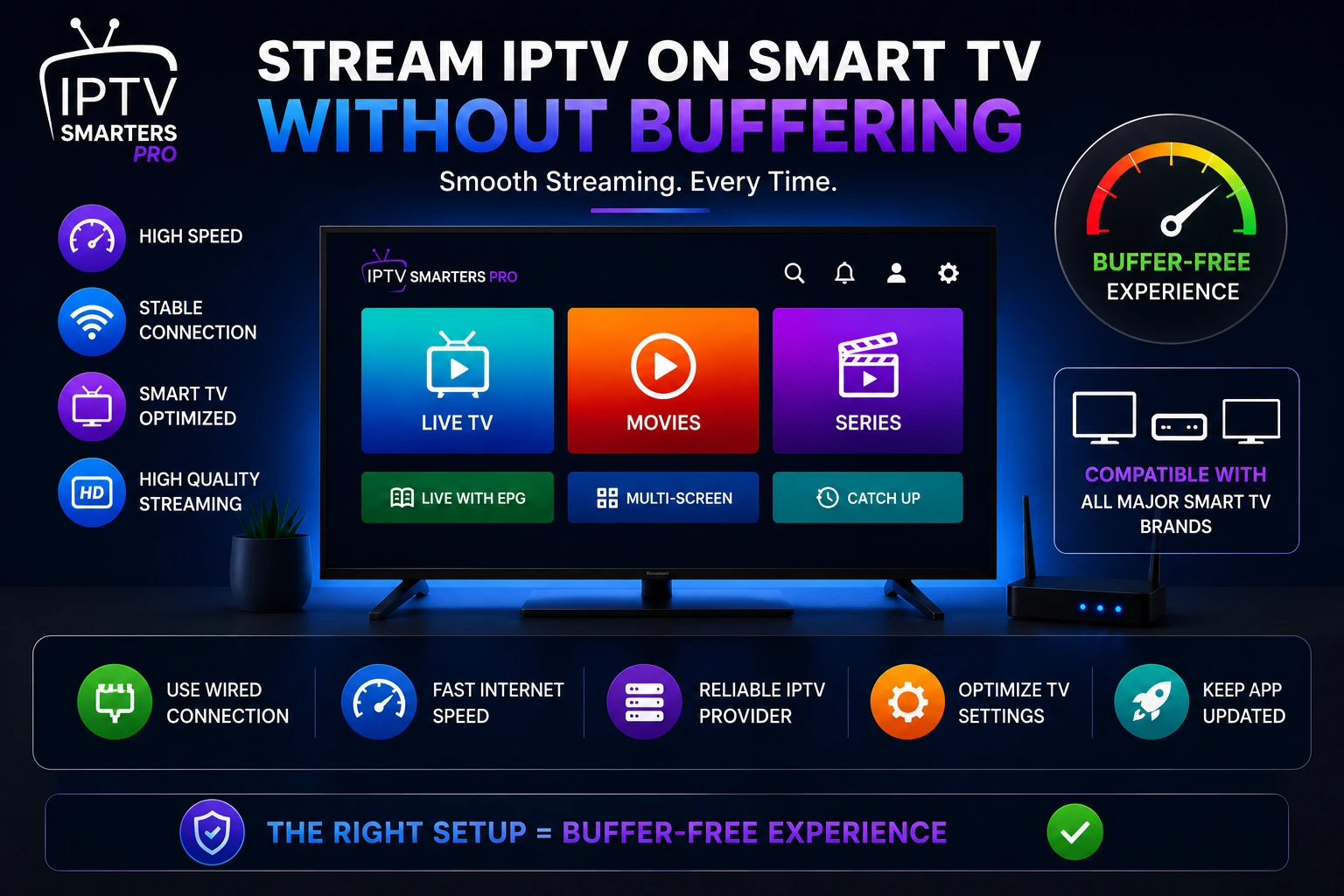
Smart TVs are convenient for IPTV streaming but often have limitations that cause buffering. Their built-in Wi-Fi adapters are typically slower than external streaming devices, and their processors handle video decoding differently. This guide covers specific optimizations for buffer-free IPTV on Smart TVs.
Key Takeaways
- Wired Ethernet eliminates 80% of Smart TV buffering issues
- Lower IPTV Smarters Pro quality to 1080p for smoother playback
- VPN prevents ISP throttling of IPTV traffic to your TV
- Cloudflare DNS (1.1.1.1) provides faster channel loading
- Clear app cache and close background apps before streaming
In This Article
Stream IPTV on Smart TV without buffering by using a wired Ethernet connection, enabling a VPN to prevent ISP throttling, lowering stream quality to 1080p, clearing the app cache weekly, and changing your DNS to Cloudflare (1.1.1.1). Smart TVs have weaker Wi-Fi chips than dedicated streaming devices, so Ethernet is especially important. For the best experience, use IPTV Smarters Pro with these optimizations.
Why Smart TVs Buffer More Than Streaming Devices
Smart TVs have weaker Wi-Fi hardware, less RAM, and slower processors compared to dedicated streaming devices like Firestick 4K or NVIDIA Shield. They also run a full smart TV operating system in the background, consuming resources that could be used for streaming. Understanding these limitations helps you work around them.
1. Use Wired Ethernet Instead of Wi-Fi
This is the single most important fix for Smart TV buffering. Smart TV Wi-Fi chips are often 2.4 GHz only or use low-quality antennas. Connect your TV directly to your router with an Ethernet cable. Most Smart TVs have an Ethernet port on the back. This alone eliminates 80% of buffering issues.
2. Lower Stream Quality in the App
Smart TV processors struggle with 4K streams. In IPTV Smarters Pro, go to Settings > Player Settings > Default Quality and set it to 1080p or 720p. The picture will still look great on most TVs, and you will eliminate processing-related buffering.
Pro Tip
3. Enable a VPN
ISPs frequently throttle IPTV traffic to Smart TVs. A VPN encrypts your traffic and prevents throttling. Install the VPN app directly on your Smart TV if available, or set up the VPN on your router to protect all devices on your network.
4. Change DNS Settings
Slow DNS resolution causes delays in channel loading and can contribute to buffering. Change your Smart TV's DNS to Cloudflare (1.1.1.1) or Google (8.8.8.8)in your network settings. For Samsung TVs, go to Settings > Network > Network Status > IP Settings > DNS Settings.
5. Clear App Cache Weekly
Smart TVs have limited storage, and cached data accumulates quickly. Go to your TV Settings > Apps > IPTV Smarters Pro> Clear Cache weekly. This frees up system resources and improves app performance.
6. Close Other Apps
Smart TVs often leave apps running in the background. Close unused apps before launching IPTV Smarters Pro. On Samsung and LG TVs, use the Recent Apps button on your remote and close apps you are not using.
7. Consider a Streaming Device
If buffering persists after all optimizations, consider using a dedicated streaming device like Firestick 4K Max or NVIDIA Shield connected to your Smart TV. These devices have better hardware for IPTV streaming and will provide a smoother experience than even the most expensive Smart TVs.
Important
What Should Be on Your Quick Optimization Checklist?
- Connect TV to router via Ethernet cable
- Set IPTV Smarters Pro default quality to 1080p
- Install and connect to a VPN
- Change DNS to 1.1.1.1 in TV network settings
- Clear IPTV Smarters Pro app cache
- Close background apps before streaming
What Is the Best Way to Stream IPTV on Smart TV Without Buffering?
Streaming IPTV on a Smart TV without buffering requires optimizing both your network and the app settings. Wired Ethernet and quality reduction are the two most effective fixes. For the best results, combine all the optimizations above and consider using a dedicated streaming device if your TV continues to struggle.
Frequently Asked Questions
Is Wi-Fi good enough for IPTV on smart TVs?
Wi-Fi can work for IPTV on smart TVs, but it is not ideal. Smart TVs typically use cheaper Wi-Fi chips that are more susceptible to interference and signal drop. If you must use Wi-Fi, ensure your TV is within 10 feet of your router, use the 5 GHz band if available, and avoid streaming during peak household usage hours. For the most reliable experience, wired Ethernet is strongly recommended.
Which smart TV brand works best with IPTV Smarters Pro?
Both Samsung and LG smart TVs work well with IPTV Smarters Pro, but Samsung Tizen TVs tend to have slightly better app performance due to a lighter operating system. Android TV / Google TV models (such as Sony and TCL) also run the app natively with full Play Store support. LG WebOS is also fully compatible and offers smooth playback once network optimizations are applied.
Do I need a separate streaming device for my smart TV?
Not necessarily. If your smart TV is less than three years old and you follow the optimizations in this guide, you can achieve buffer-free IPTV without an external device. However, if you experience persistent buffering after trying all steps, a dedicated device like a Firestick 4K Max or NVIDIA Shield will provide a noticeably smoother experience thanks to superior Wi-Fi, processors, and RAM.
How do I update the app on my Samsung TV?
To update IPTV Smarters Pro on your Samsung Smart TV, press the Home button on your remote, navigate to Apps, then select the Settings icon (gear) in the top-right corner. Choose "Updates" and select "Update All" to ensure IPTV Smarters Pro and all other apps are on the latest version. Keeping the app updated ensures you have the latest performance improvements and bug fixes.
Ready to Start Streaming?
Download IPTV Smarters Pro for free and enjoy live TV, movies, and series on all your devices.
Download IPTV Smarters ProConclusion
Streaming IPTV on your Smart TV without buffering is achievable with the right combination of network and app settings. Prioritize a wired Ethernet connection, adjust stream quality, and use a VPN to prevent ISP throttling. For platform-specific guidance, check our detailed guides for IPTV on Samsung TV and IPTV on LG TV. Ready to try it? Download IPTV Smarters Pro for free.
IPTV Smarters Pro Team
IPTV streaming experts with 5+ years of hands-on experience testing IPTV players, apps, and services across Android, iOS, Firestick, and Smart TV platforms.
The IPTV Smarters Pro Team has been covering IPTV technology since 2021. We test every app, feature, and device ourselves to provide accurate, practical guides. Our reviews and tutorials have helped over 100,000 readers set up IPTV on their devices.